How to Turn Off a Scientific Calculator (Casio, TI and Sharp)
To turn off a scientific calculator, press the shift key first, then press the key with OFF printed above it. The shift key is called SHIFT on Casio, 2nd on Texas Instruments and 2ndF on Sharp. The second key is AC on the Casio models we checked and ON on TI and Sharp.
This guide shows how to turn off a scientific calculator using the steps in each maker’s own manual, plus how long each model waits before it switches itself off. If you use our free online scientific calculator, there is no power key at all. You just close the tab.
How Do You Turn Off a Scientific Calculator?
Press two keys, one after the other, not at the same time. The shift key tells the next key to use the small label printed above it, and on the power key that label says OFF. Here are the models people ask about most, taken from the manuals.
| Calculator | Turn it off | Turn it on | Switches itself off |
|---|---|---|---|
| Casio fx-991ES Plus, fx-570ES Plus | SHIFT, then AC | ON | After about 10 minutes |
| Casio fx-83GT X, fx-85GT X (ClassWiz) | SHIFT, then AC | ON | After about 10 minutes |
| Casio fx-991CW | SHIFT, then AC | Long-press ON | See your manual |
| Texas Instruments TI-30XS MultiView | 2nd, then ON | ON | After about 5 minutes |
| Sharp EL-501W | 2ndF, then the key marked OFF (usually ON) | ON/C | After about 8 minutes |
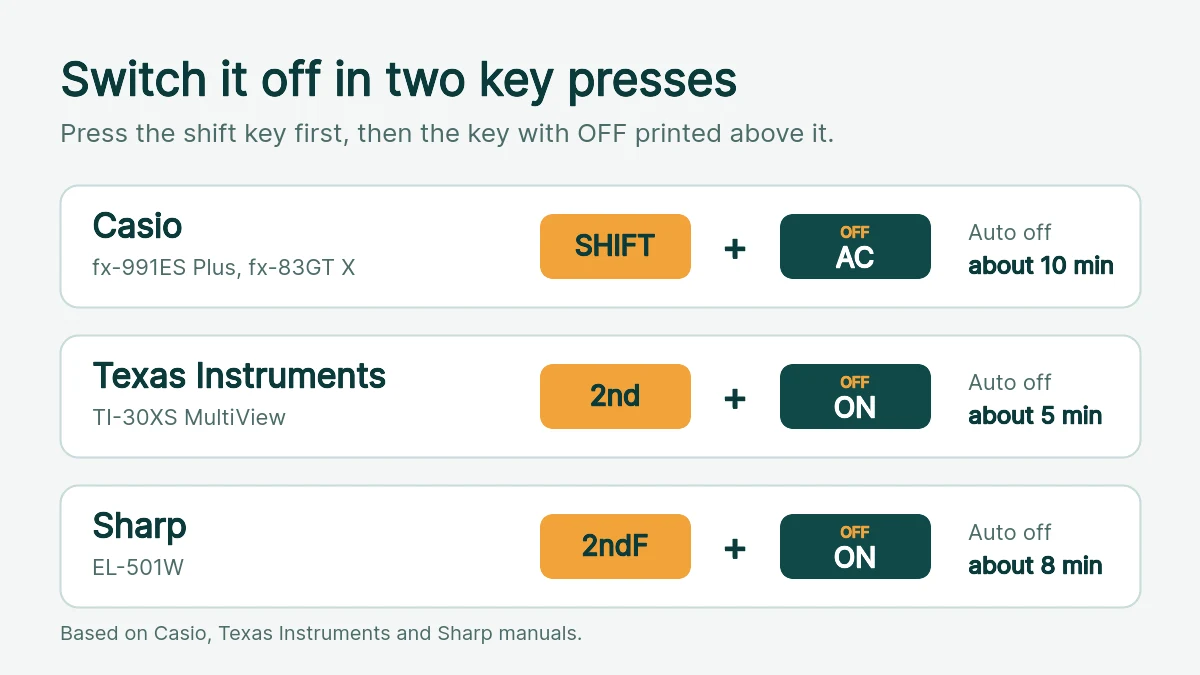
The last column is how long each model waits before it switches itself off, so a forgotten calculator does not drain its battery.
How Do You Turn Off a Casio Calculator?
Press SHIFT, then AC. The word OFF is printed above the AC key. Casio’s fx-991ES Plus manual and its fx-83GT X and fx-85GT X manual both give this step, and the fx-991EX works the same way. To turn it on again, press ON.
The fx-991CW is the odd one. Casio’s manual says to long-press ON to switch it on, and the top of that key sits a little lower than the others so you do not press it by accident. The ES Plus and the fx-83GT X switch themselves off after about 10 minutes of non-use, and pressing ON wakes them up.
How Do You Turn Off a Texas Instruments Calculator?
Press 2nd, then ON. OFF is printed above the ON key. In TI’s TI-30XS MultiView guidebook, turning it off clears the display, but the history, settings and memory are kept. If you forget, the Automatic Power Down feature turns it off after about 5 minutes without a key press. Press ON and your display, pending operations, settings and memory are still there. For other TI models, check your own guidebook.
How Do You Turn Off a Sharp Calculator?
Press 2ndF, then the key with OFF printed above it. On most Sharp scientific calculators that is the ON key, as Sharp’s own FAQ explains. On the EL-501W you switch on with ON/C. Sharp’s FAQ says scientific calculators shut themselves off after about 10 minutes, and the EL-501W manual gives about 8 minutes for that model.
Does Turning Off the Calculator Erase Your Work?
It depends on the model. The TI-30XS MultiView keeps its history, settings and memory. On the Sharp EL-501W, switching off, or the automatic power off, clears a special mode such as STAT and returns the calculator to normal mode. For other models, read the “turning power on and off” part of the manual so you know what you would lose. If a result matters, write it down before you switch off.
Why Does My Calculator Turn On by Itself in My Bag?
Because a key gets pressed. Casio’s fx-991CW manual warns that accidental key presses can turn the power on and run down the battery, so it tells you to keep the front cover on whenever you are not using the calculator. The same habit works for any model with a slide-on cover or hard case.
Why Turn It Off if It Switches Off by Itself?
Auto power off exists to save battery, as Sharp’s FAQ says, but the calculator still uses power during the minutes it waits. Switching it off yourself when you finish, then putting the cover on, is the easy habit that makes a battery last longer.
How Do You Turn Off an Online Scientific Calculator?
An online calculator has no power key. Close the tab or reload the page. Our calculator runs in your browser and does not store what you type, as the privacy policy explains, so the history is gone when you leave.
Before an Exam
Practise the off and on steps once before the test, then press ON and check that your angle mode and settings are still what you want. Our guide on how to use a scientific calculator shows the angle mode and the other settings worth checking.
More Guides
- How to Use a Scientific Calculator
- A Straightforward Calculator Buying Guide
- Order of Operations on a Calculator
- Casio fx-991 Online
- Browse all guides
Sources
Checked 18 November 2026. Key names vary by model, so confirm in your own manual.
- Casio: fx-570ES Plus and fx-991ES Plus manual, Getting Started
- Casio: fx-83GT X and fx-85GT X manual, Getting Started
- Casio: fx-991CW manual, Getting Started
- Casio UK: fx-991EX user guide
- Texas Instruments: TI-30XS MultiView guidebook
- Sharp: scientific calculator FAQ, operation
- Sharp: EL-501W operation manual