How to Use a Scientific Calculator: A Beginner’s Guide
How to use a scientific calculator comes down to five habits: check the angle mode, type the expression the way you would write it with brackets where needed, press equals, and use the Ans, memory and arrow keys to reuse or fix a result. The rest is knowing what a few extra keys do.
Key names change from brand to brand, so this guide on how to use a scientific calculator names the common Casio and Texas Instruments versions and tells you what to look for on others. You can follow along on our free online calculator while you read.
How Do You Use a Scientific Calculator, Step by Step?
- Check the angle mode (Deg or Rad) before any trig.
- Type the expression as written, adding brackets around anything that must be done first.
- Press equals and read the result.
- Use Ans, memory or the arrow keys to build on the result instead of retyping.
- Estimate the answer in your head to catch typing mistakes.
Step 1: Why Does the Angle Mode Matter?
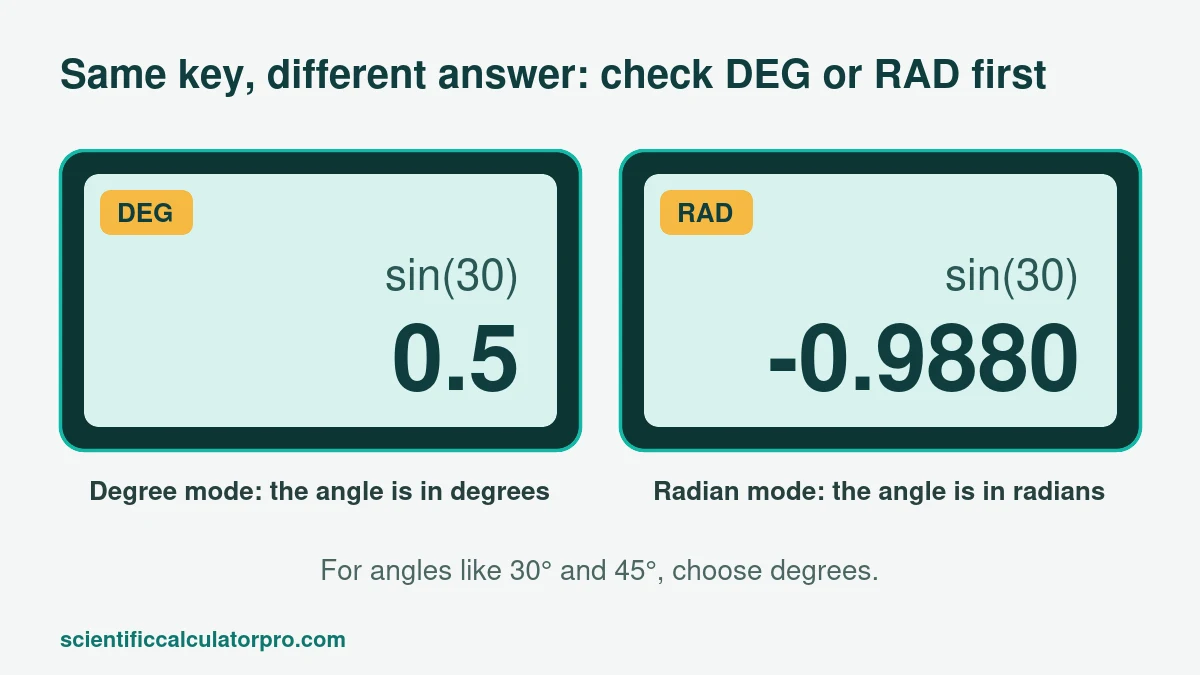
Because the same key gives different answers in degree and radian mode, and this is the most common reason a trig answer is wrong. Look for DEG or RAD at the top of the result area, which shows the current angle mode. If you are working with angles like 30° or 45°, you want degrees.
| Entry | Degree mode | Radian mode |
|---|---|---|
| sin(30) | 0.5 | −0.9880 |
| cos(180) | −1 | −0.5985 |
| tan(45) | 1 | 1.6198 |
On many Casio ES models press SHIFT then MODE (Setup) and pick Deg or Rad. On Casio ClassWiz models use SHIFT then MENU (Setup) and choose Angle Unit. On Texas Instruments models press MODE and select DEG or RAD.
Step 2: How Do You Type an Expression Correctly?
The core of how to use a scientific calculator is typing on the keypad from left to right, the same way you would write it, and opening a bracket for every function. Most calculators add the opening bracket when you press sin, cos, tan or log, and you close it yourself. For (2 + 3) × 4 you need the brackets, because without them the calculator multiplies 3 × 4 first and returns 14. Our guide to order of operations on a calculator shows more cases.
How Do You Edit a Calculation Without Starting Over?
Knowing how to use a scientific calculator includes editing. Use the left and right arrow keys to move through the line, then press DEL to remove one character or type over it. You do not need to clear everything. Many models also keep a replay list. Press the up arrow to bring back an earlier line, fix one number, and run it again. If you typed 100+22+10+8+3 and the 22 should be 25, arrow back, change it, and press equals.
How Do You Use Memory and the Answer Key?
The Ans key is the next skill in how to use a scientific calculator. It holds the last result, so you can start a new line with it, for example Ans × 2. For values you need later, store them. M+ adds the displayed result to memory, MR recalls it, and on many models STO and RCL save and recall named variables. Clear memory before a new problem so an old value does not slip in.
How Do You Get an Exact Fraction Answer?
Use the fraction key or the display toggle. On Casio models the S⇔D key switches an answer between decimal and fraction, and on Texas Instruments models an answer toggle key does the same. 1 ÷ 3 shows as 0.3333 until you toggle it to 1/3. If your model cannot do this, use our fraction calculator, which keeps the numerator and denominator as whole numbers.
How Do You Enter Scientific Notation?
Use the exponent key instead of typing × 10 yourself. On Casio it is ×10ˣ, on the TI-30XS MultiView it is the x10ⁿ key, and on Sharp models it is usually EXP. To enter 6.5 × 10⁶, type 6.5, press the exponent key, then 6. Our scientific notation calculator converts and multiplies these numbers for you.
What Do Calculator Error Messages Mean?
They point to the type of mistake, and each has a quick fix.
- Math ERROR (Casio): you asked for something impossible, such as 1 ÷ 0 or the square root of a negative number in real mode. Check the numbers.
- Syntax ERROR (Casio): the line has a bracket or operator in the wrong place. Press the left arrow and the cursor jumps to the problem.
- Stack ERROR (Casio): too many nested brackets or pending operations. Split the problem into two steps.
- Error 1 (some Sharp models): can show up when the calculator is in another number base, such as hexadecimal. Look for a small base symbol on the screen and switch back to normal mode.
Why Is My Scientific Calculator Giving the Wrong Answer?
Most people who search how to use a scientific calculator are really asking why it gave a strange answer. Run this checklist in order, and it solves most cases.
- Is the angle mode right for the question?
- Did you use brackets on the top and bottom of every fraction?
- Did you type −2^2 when you meant (−2)^2?
- Is the display showing an unusual mode, such as statistics or a number base?
- Is the calculator genuine? Owners of Casio fx-991EX models have reported that fake units, made with copied firmware, give answers that differ from genuine ones. Buy from an authorised seller, and compare a tricky result against a classmate’s calculator or an online one.
How Do You Turn Off a Scientific Calculator?
On Casio models press SHIFT then AC. On Texas Instruments models press 2nd then ON. On other brands look for OFF printed above a key, usually the ON key, and use the second-function key first. Most models also switch themselves off after a few minutes of no use.
Why Does the Screen Fade in Low Light?
Solar models need light to run the display, and a weak or empty battery makes the fading worse. If the digits fade indoors, replace the battery. If it still fades, try a brighter spot, then check the contrast setting if your model has one.
Try It Yourself
Open the free scientific calculator and enter sin(30), sqrt(16) and (2+3)*4 to practise how to use a scientific calculator. In degree mode you should see 0.5, 4 and 20.
More Guides
- Scientific vs. Graphing Calculators Compared
- How to Calculate MOD (Remainder) on a Calculator
- How to Find a Square Root Without a Calculator
- A Straightforward Calculator Buying Guide
- Browse all guides
Sources
Checked October 2026. Key names vary by model, so confirm in your own manual.